
DNS, keyword and certificate checks
Updated 2026-10-09 · Pharos 1.0.0
A check can do more than fetch a URL or open a port. An HTTP check can require a piece of text in the response, a DNS check compares a record with the value you expect, and every HTTPS check reads the expiry date of the certificate. You set all of it on the component: Services → Components, then Add a component or Edit, in the panel How it is checked.
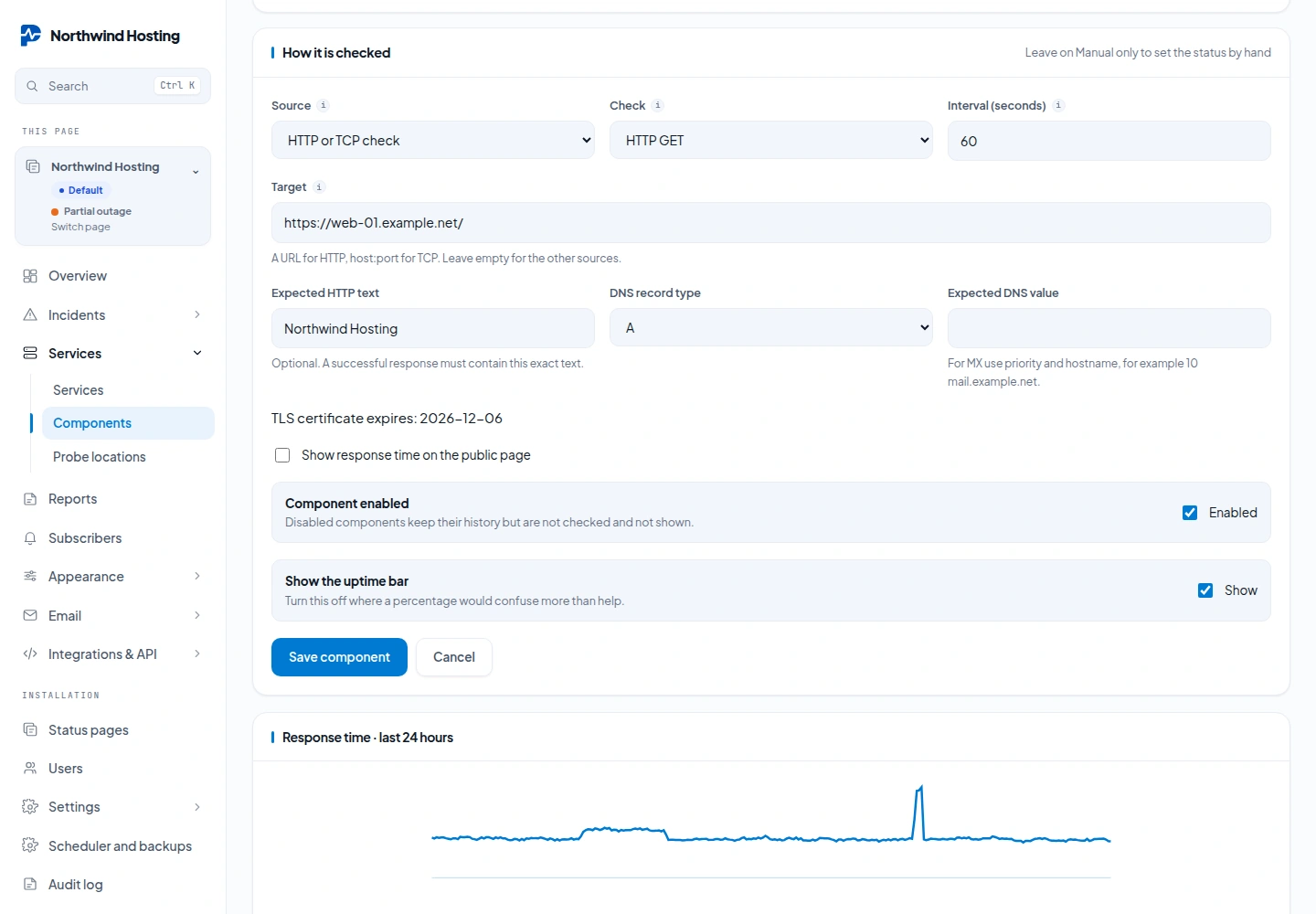
Set Source to HTTP or TCP check, then choose the kind under Check: HTTP GET, DNS record or TCP port.
| Field | Used by | What to enter |
|---|---|---|
| Target | All three | A full URL for HTTP, host:port for TCP, the record name for DNS, for example example.com. |
| Interval (seconds) | All three | How often to look: 30 to 86400, 60 by default. |
| Expected HTTP text | HTTP | Optional. Up to 1000 characters that the response must contain. |
| DNS record type | DNS | A, AAAA, CNAME, MX or TXT. |
| Expected DNS value | DNS | Required. The value one of the returned records must have. |
The rules for going red are the same for every kind: two failures in a row turn the component red and open an incident, three healthy runs in a row close it. See How checks work.
Keyword checks
Fill in Expected HTTP text to check that a page shows what it should, and not only that the server answers. The check is up when the response code is 200 to 399 and the response contains the text exactly as you typed it, upper and lower case included. When the text is missing the check fails with the message Expected text is missing.
- Redirects are not followed. Enter the address that serves the page itself, or Pharos looks for the text in the redirect response.
- An HTTP check reads at most 1 MiB of the response. A larger response fails the check, with or without expected text, so point it at a small page or a health endpoint.
- Pharos asks for an uncompressed response, so the text is compared with what the server actually sends.
DNS checks
A DNS check looks up one record and compares the answer. Enter the record name as the target, pick the record type and type the value you expect. The check is up when at least one of the returned records matches. The lookup is done by the resolver of the server Pharos runs on.
| Type | Expected value | How it is compared |
|---|---|---|
| A | 203.0.113.10 | As an address. |
| AAAA | 2001:db8::10 | As an address, so a shortened and a full notation of the same address match. |
| CNAME | web-01.example.com | Upper and lower case and a trailing dot are ignored. |
| MX | 10 mail.example.com | Priority, a space, then the hostname. Case and a trailing dot are ignored. |
| TXT | v=spf1 include:example.com -all | Exactly, case included. A long record that DNS splits into several strings is joined first. |
The message beside the check reads DNS record matches, Expected DNS record is missing or DNS lookup failed. Use it for records that somebody else can change: the address of a site, mail routing, an SPF or verification record.
Certificate expiry
There is nothing to switch on. Every HTTP check on an https:// address reads the expiry date of the certificate from the same request that tests the site.
| Certificate | What Pharos does |
|---|---|
| More than 14 days left | Nothing. The edit screen of the component shows TLS certificate expires with the date. |
| 14 days or less | The edit screen adds Certificate renewal needed, and the check message reads TLS certificate expires with the date. The component stays as it is. |
| 3 days or less | The component goes to Degraded performance while the site still answers. |
| Expired, untrusted or for another hostname | The check fails, normally with the message TLS certificate problem. After the retries the component turns red and an incident opens. |
The 14 day warning is shown in the admin only. Pharos does not send a mail or a notification for it. Open the component now and then, or watch for the status change at 3 days.