
Passkeys
Updated 2026-10-09 · Pharos 1.0.0
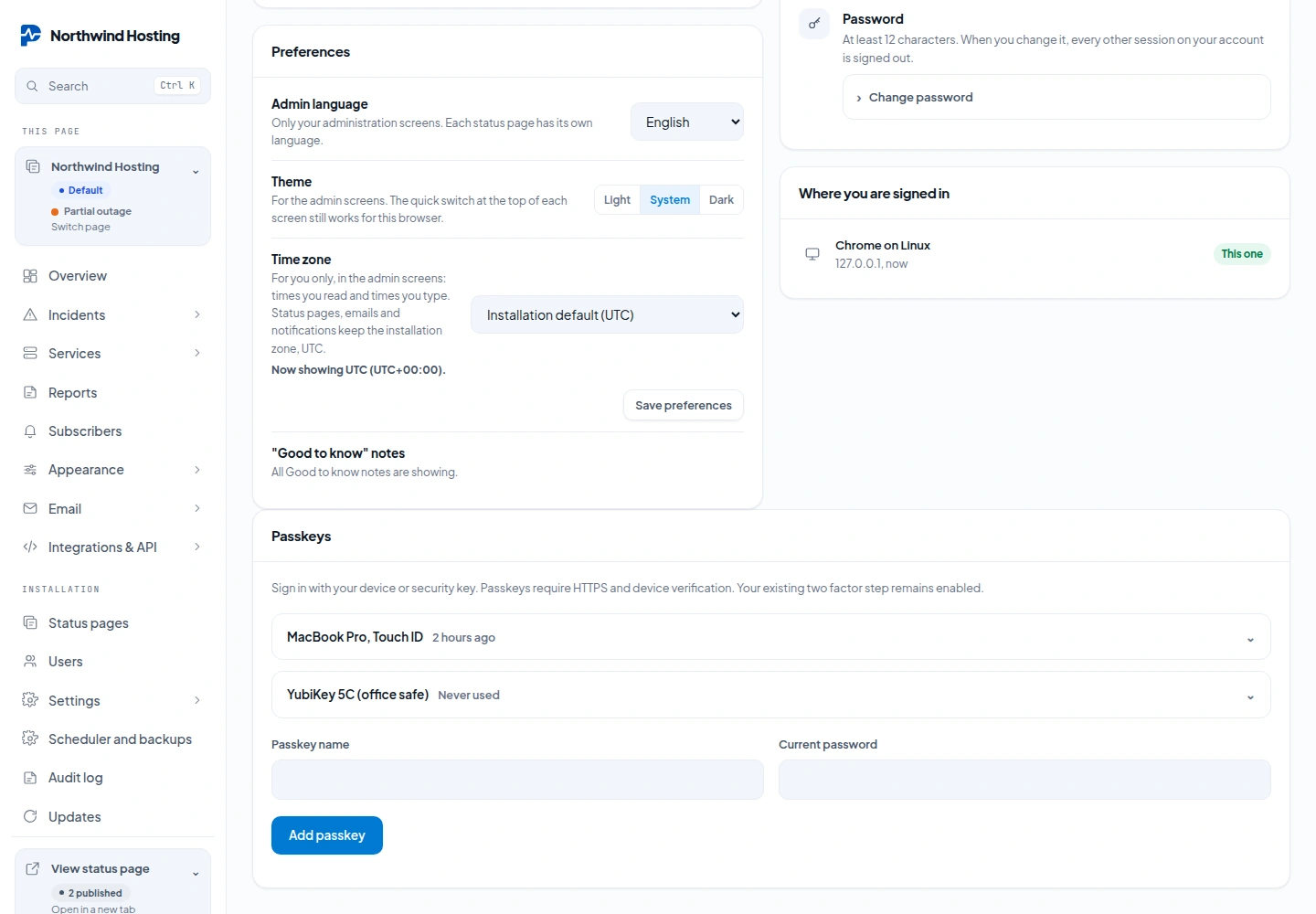
A passkey lets you sign in with your device or a security key instead of typing your email and password. Every account manages its own passkeys under Profile, in the card Passkeys. Password sign in keeps working next to it.
Passkeys need an HTTPS hostname. They only work when you open the admin on an https:// address with a name, such as https://status.example.com. They do not work on an IP address, not even with HTTPS, and they do not work over plain HTTP. On plain HTTP the buttons stay off and Pharos says: Passkeys are unavailable here. Use a supported browser on the configured HTTPS hostname.
Add a passkey
- Open Profile and find the card Passkeys.
- Type a Passkey name you will recognise, such as the device it lives on, and your Current password.
- Press Add passkey. The browser asks you to confirm with the device or the key. The passkey then appears in the list, with when it was last used.
To remove one, open it in the list, type your Current password and press Remove passkey. An account can hold up to 10 passkeys.
Adding or removing a passkey always asks for the account's own Pharos password. That is also true when you normally sign in through single sign on: the password of your identity provider does not work here. If you do not know your Pharos password, set one first with Forgot password? on the sign in screen.
Sign in with a passkey
On the sign in screen, press Sign in with a passkey. You do not type an email address: the browser offers the passkeys it holds for this site, and the device asks you to confirm.
- If your account has two factor on, Pharos asks for the code after the passkey, as it does after a password.
- A passkey does not count as two factor. If an administrator requires two factor for your account, you still have to set that up.
- Keep your password, and your recovery codes if you use two factor. A lost device should never be your only way in.
For the administrator of the installation
Usually there is nothing to set. A passkey is tied to the address of the admin, and Pharos takes that address from APP_URL. So APP_URL must be the exact HTTPS address people open, name and port included.
APP_URL=https://example.com/status
# only needed when APP_URL has a folder in it, as it does here
PHAROS_WEBAUTHN_ORIGIN=https://example.com
- PHAROS_WEBAUTHN_ORIGIN is the scheme, the hostname and, if you use one, the port. No folder and nothing after it. When Pharos runs in a folder, as in the example, set it to the address without the folder. Without a folder you can leave the setting out.
- A passkey belongs to the hostname it was made on. Move the admin to another hostname and the existing passkeys stop working: everyone adds new ones on the new address. Passwords are not affected.
- Adding and removing a passkey is written to the audit log.